How to Connect and Use Zoom on Coachli
If Zoom is your go-to tool for video calls, you can now link it directly to your Coachli account — and once you do, the platform handles everything else.
Every time a customer books a 1:1 session or live event with you, Coachli automatically generates a unique Zoom meeting link and delivers it to them the moment their booking is confirmed. No manual setup. No copying and pasting links. No back-and-forth to share meeting details. It just works.
Here's everything you need to know to get started.
What you need before you start
Just two things:
- A Zoom account — free or paid, both work. If you don't have one yet, head to zoom.com to create one.
- Your Zoom login credentials — you'll need these to authorise the connection.
That's it. No technical configuration required.
How to connect your Zoom account
- Log in to your Coachli account and go to your dashboard.
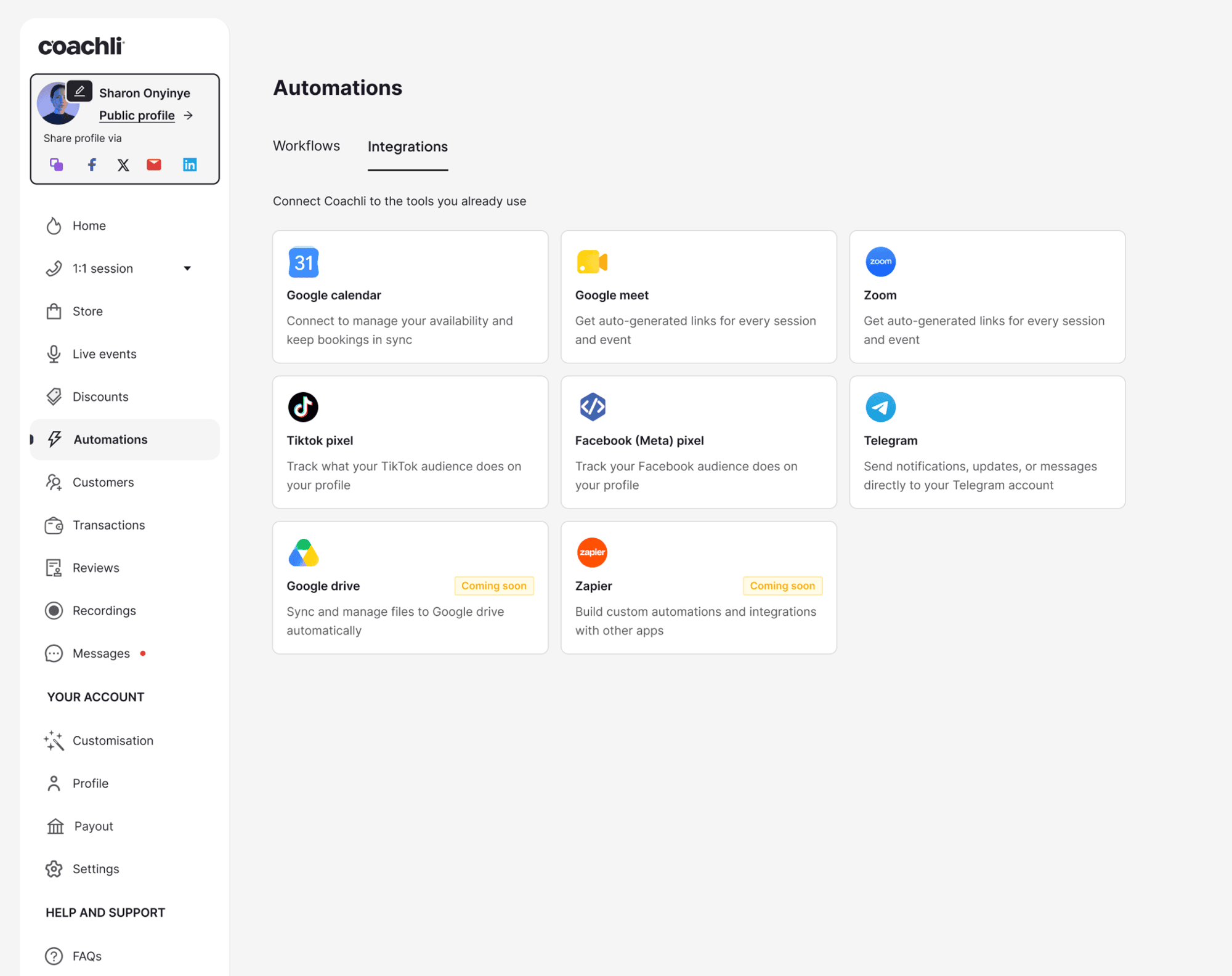
- Click on Automations in the left navigation menu.
- Select Integrations once the page opens
- Find the Zoom card and click on it.
- Click Connect Zoom.
- You'll be redirected to Zoom's login page — enter your credentials and authorise Coachli to access your account.
- Once authorised, you'll be sent back to Coachli automatically.
A success message will confirm the connection, and the Zoom card on your integrations page will show a Connected tag.
That's all. Your Zoom account is linked and ready to use.
How to use Zoom when creating a session or live event
Once connected, you can select Zoom as the location for any 1:1 session or live event you create on Coachli.
Step 1 — Create or edit your offering
Go to your dashboard and click Create Offering. Select 1:1 Session or Live Event, then fill in your details — name, description, pricing, and availability.
Step 2 — Select Zoom as your location
In the Location field, open the dropdown and select Zoom. You'll see a confirmation note confirming that a unique Zoom link will be generated for every booking automatically.
Finish setting up your session or event and publish it.
What happens after a customer books
The moment a customer completes their booking, Coachli creates a unique Zoom meeting link for that session. Here's what the experience looks like for both of you:
- Booking confirmation email — your customer receives a confirmation with a Join button that takes them directly into the Zoom room.
- Session reminders — both you and your customer get reminder emails before the session, each with a Join button.
- Dashboard — your upcoming sessions appear on your Coachli dashboard with a Join button. Your customer sees the same on their end.
You never have to touch a Zoom link. Coachli handles it from the moment someone books to the moment the session begins.
How to remove the Zoom integration
You can disconnect Zoom at any time.
- Go to Integrations in your Coachli dashboard.
- Click the Zoom card.
- Click Disconnect.
- Confirm when prompted.
Your Zoom account will be disconnected and the Connected tag will be removed.
What happens to existing bookings? Nothing changes. Any sessions already booked with a Zoom link will keep their Join button and the link will continue to work. For new bookings after disconnecting, Zoom won't appear as a location option until you reconnect.
Frequently asked questions
- Do I need a paid Zoom account? No. Coachli supports both free and paid Zoom accounts.
- Will my customers need a Zoom account to join? No. Customers can join as a guest — they just click the Join button in their confirmation or reminder email.
- What happens if I disconnect and reconnect Zoom? Existing bookings are not affected. Once you reconnect, new bookings will automatically generate Zoom links again.
- Can I use both Zoom and Google Meet on Coachli? Yes. You can connect both. When creating a session or live event, simply select whichever platform you want to use for that specific offering.
- I connected Zoom but it's not showing as a location option. What do I do? Check that your Zoom card shows a Connected tag on the integrations page. If it does but Zoom still isn't appearing in the dropdown, try disconnecting and reconnecting. If the issue persists, reach out to our support team.
Ready to get started?
Head to your Coachli integrations page and connect your Zoom account today. Once it's set up, every session you create can have a Zoom link ready and waiting before your customer even asks.
Questions? Our support team is happy to help.